Developer
This section is for Developer operations
Sourcetree
New branch (start a new feature)
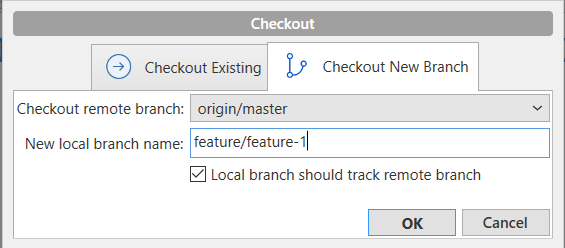
When starting a new feature or start a new bug fixing, MUST branching out from pre_live branch:
- Right click on
REMOTES > origin > pre_live, click oncheckout origin/pre_live - At
New local branch namewritefeature/feature-name(please remember to start withfeature/) then clickOK
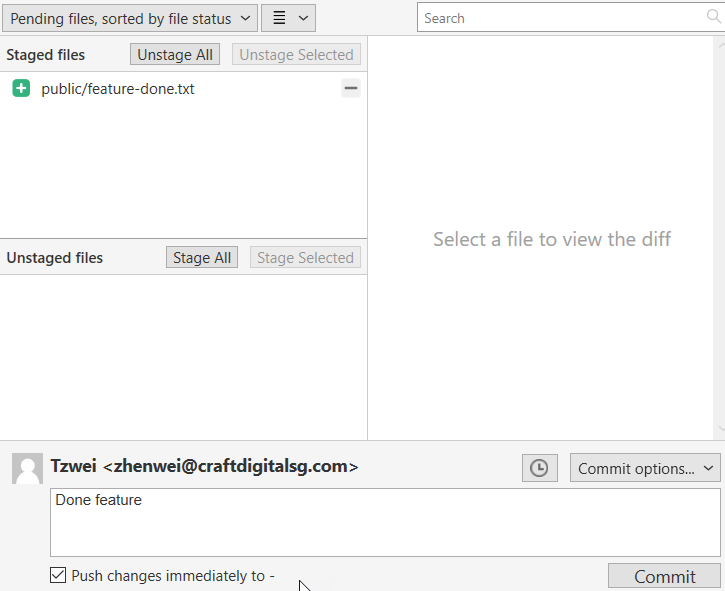
Commit Changes
At the FIRST time when commit the changes REMEMBER to tick Push changes immediately to - to let the branches pushed to origin
After the FIRST time can choose to not tick the Push changes immediately to -
Push branch
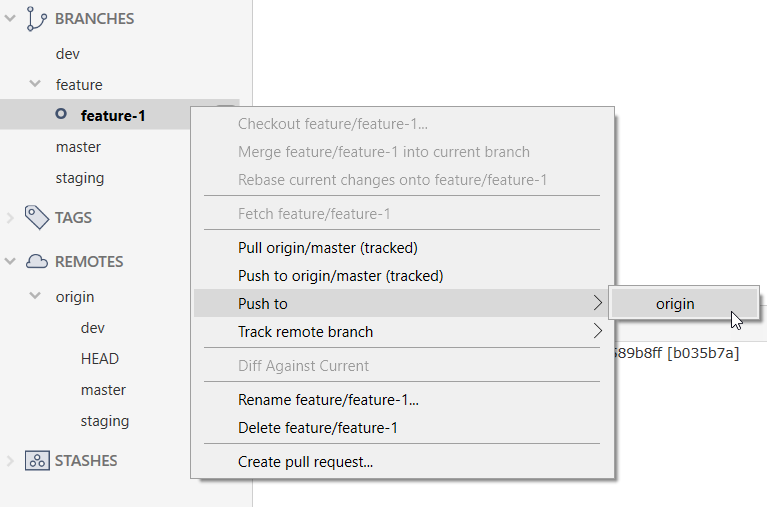
After code is done, and committed in local, need to push code to remote.
- Right click on the
REMOTES > feature > feature-1 - Choose
Push to > origin
Tip
If miss out tick the checkbox in commit stage and the branch is no showing in push window, like
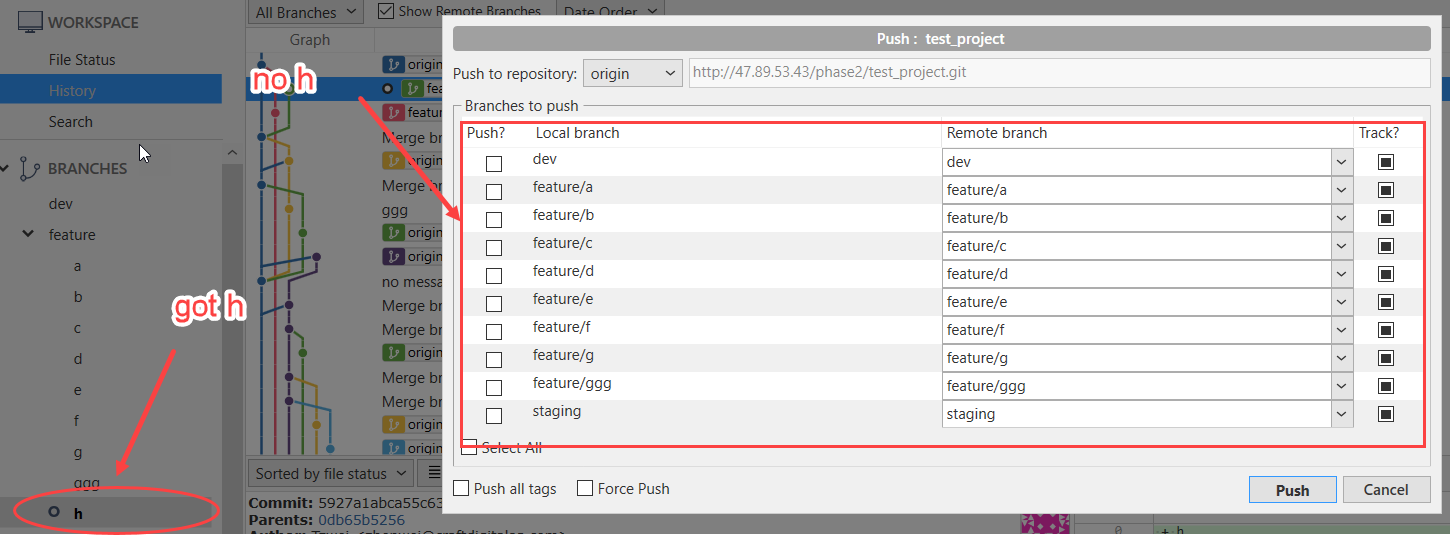
can choose to (pick only one method below):
Execute following command in terminal:
git push --set-upstream origin feature/feature-1Amend last commit message and tick the checkbox agn
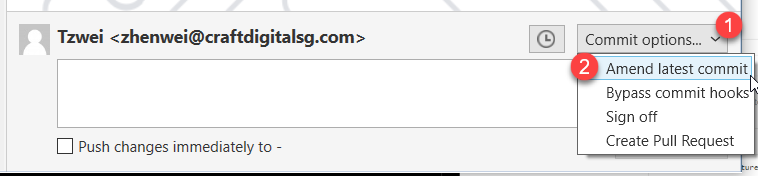
Attention
If a commit is already on remote, please dont simply amend commit message, unless you know what you are doing!!!
Delete branch
After branch is deleted in remote or when want to remove branch
- Be sure NOT in the branch which need to delete
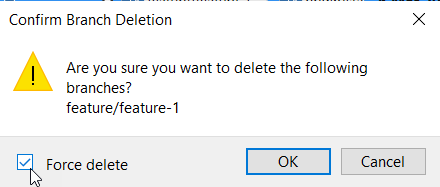
- Right click on the branch name, choose
Delete branch/nameand tickForce deletefor prevent it from error (When got changes stuck in the branch is cannot normal delete branch)
Git Command
New branch (start a new feature)
git checkout -b feature/feature-1 --track origin/master
Commit Changes
# stage all file
git add .
# commit with message
git commit -m "Done feature"
Push branch
git push --set-upstream origin feature/feature-1
Delete branch
# change branch to other branch
git checkout master
# force delete local branch
git branch -D feature/feature-1
GitLab
After branch was pushed to REMOTES, developer need to create PUSH REQUEST in GitLab
Create Merge Request
Inside the GitLab repository project page, click the following buttons
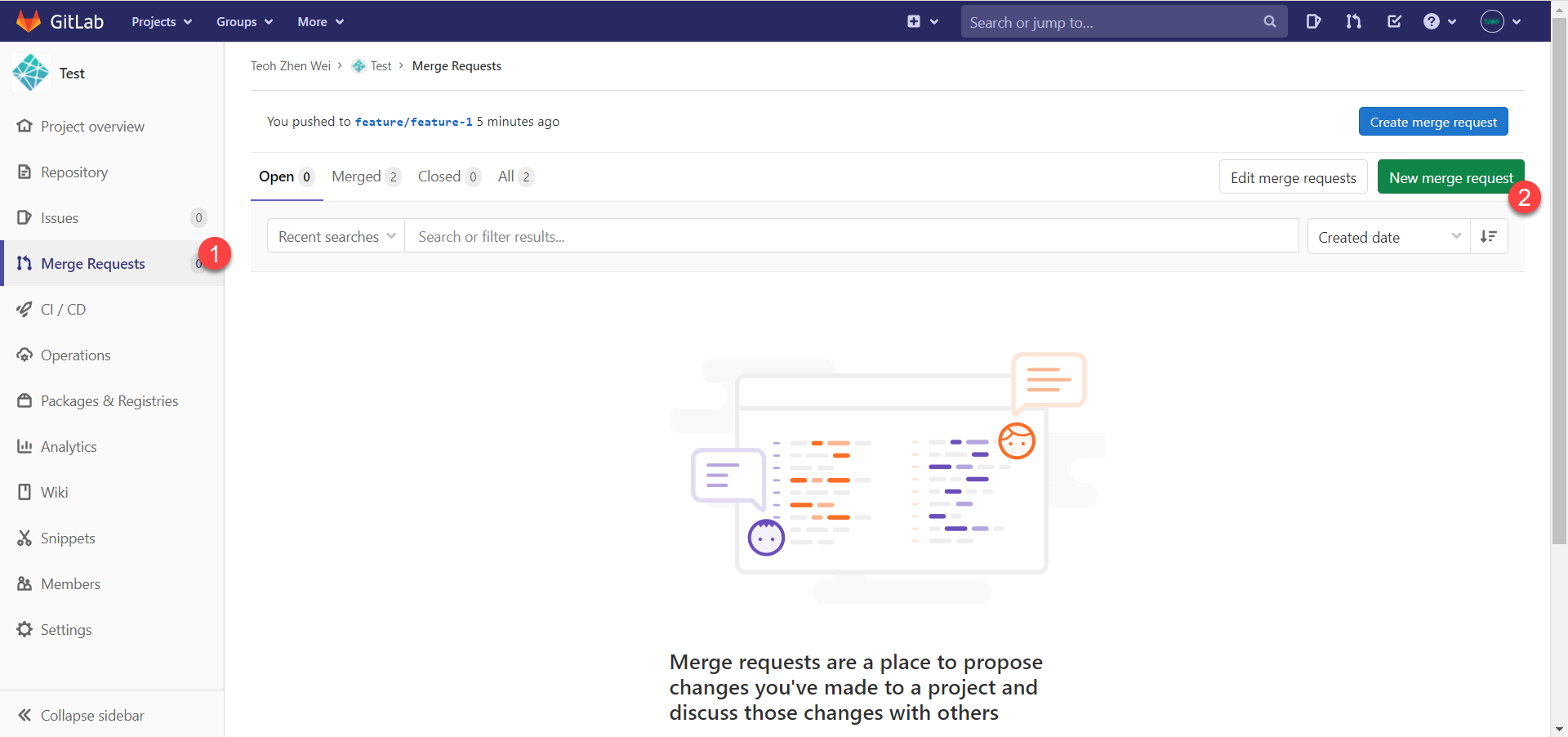
- After clicked
New merge request, then - At
Source branchpanel, choose feature branch - At
Target branchpanel, choosestaging/pre_live - Click
Compare branches and continue
- At
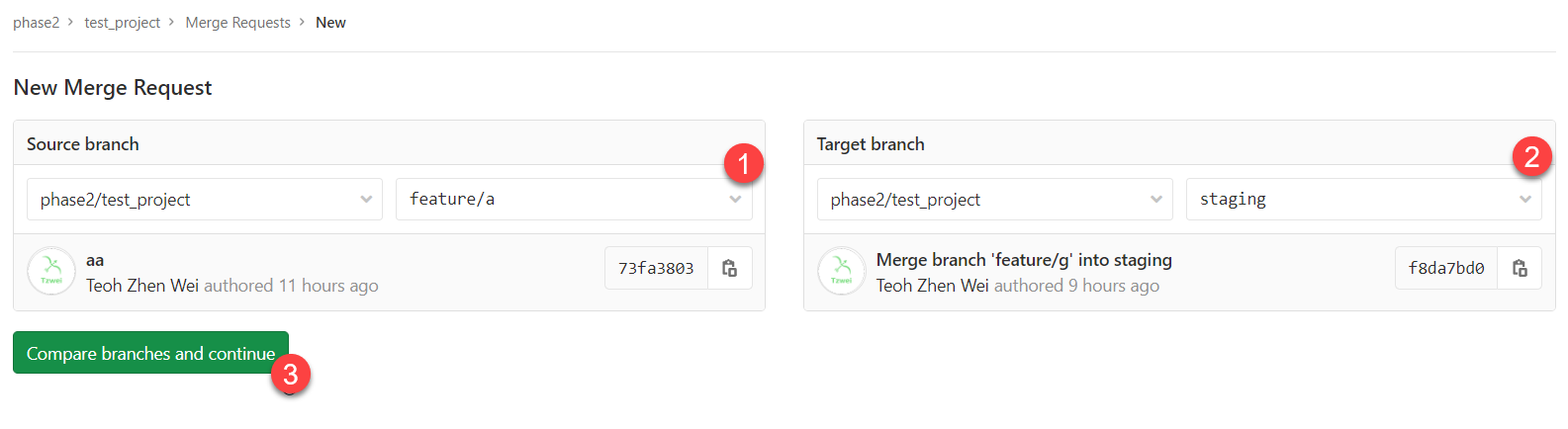
- After clicked
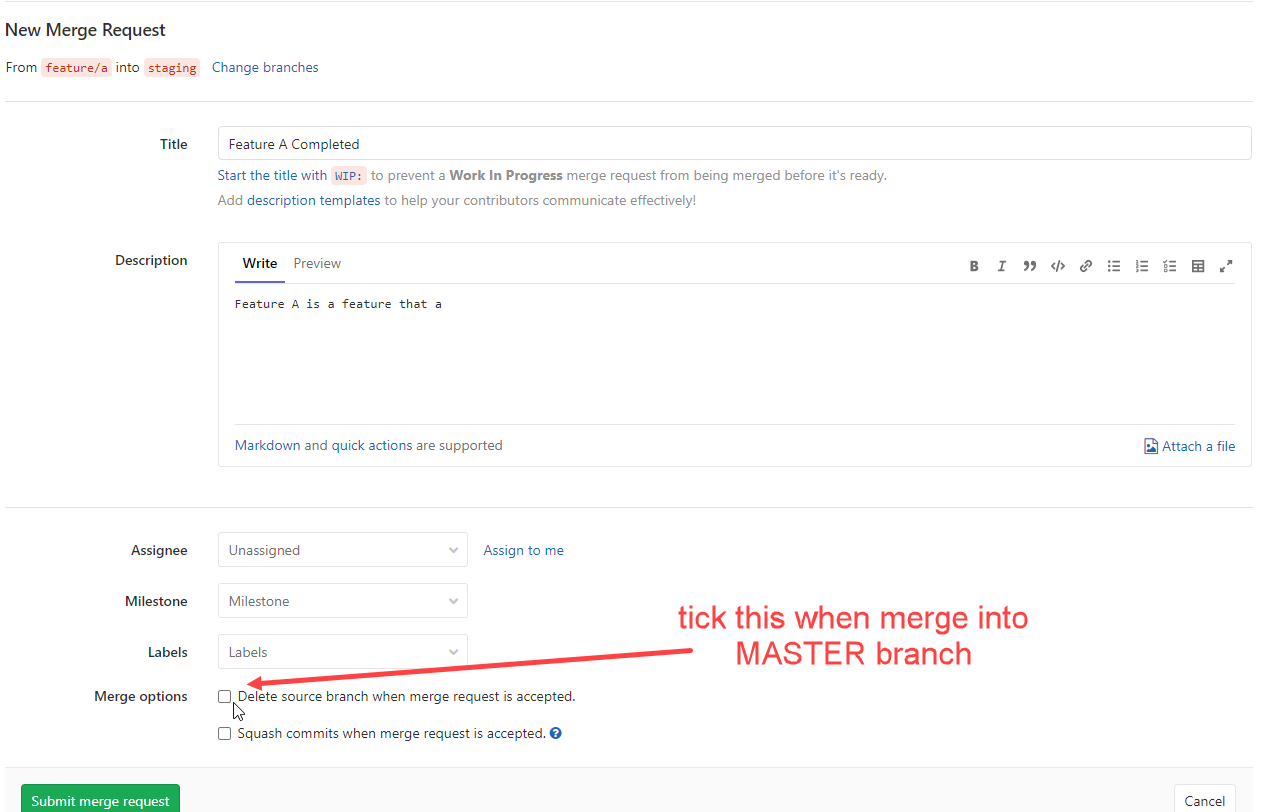
Compare branches and continue - Fill in the fields
- When merging to
STAGING, untick theDelete source branch when merge request is accepted.PRE_LIVE, tick theDelete source branch when merge request is accepted.
- Click
Submit merge request
Tip
After the merge request submitted still pushing a new commit, the same request will be follow the latest branch status automatically